My setup: Sky Wifi FTTH in Italy, Keenetic Titan (KN-1811) plugged directly into the ONT and speaking MAP-T natively, NextDNS configured as the content filter on the router. Instagram on my phone felt sluggish on Wi-Fi while everything else — web browsing, video streaming, work tools — seemed fine.
First instinct: blame IPv6.
It was a reasonable instinct, and it was wrong. Here’s how I worked through it.
The plausible hypothesis: NextDNS over IPv6
Three facts were stacked in favor of an IPv6-related explanation:
NextDNS has a documented history of slow resolution or timeouts over IPv6 from certain regions. The help center thread has reports from users in New Zealand, the Netherlands, and elsewhere describing 10-second resolution stalls that disappear the moment IPv6 is disabled.
Sky Wifi is essentially an IPv6-native network. Sky adopted MAP-T to deal with IPv4 exhaustion: IPv4 packets are encapsulated inside IPv6 and sent across Sky’s network, where the carrier maps them to a shared pool of IPv4 addresses on egress. My Keenetic shows the MAP-T address explicitly (
198.51.100.42, mask255.255.255.255) and a delegated IPv6 prefix (2001:db8:abcd::/48).Instagram resolves to IPv6 by default. A quick
nslookup:$ nslookup -type=AAAA instagram.com instagram.com has AAAA address 2a03:2880:f26d:e9:face:b00c:0:4420 $ nslookup -type=A instagram.com Address: 157.240.203.174That
face:b00cis Meta’s signature. Modern phones use Happy Eyeballs: when both A and AAAA records resolve in reasonable time, they almost always prefer the AAAA result. So Instagram traffic from my phone goes over IPv6 end-to-end.
Chain them and you get: phone → DNS lookup of AAAA via NextDNS over IPv6 → (if slow) → stalled page loads of Instagram specifically, while IPv4-only or mixed sites feel fine. The shape of the bug matched the symptom.
Time to test it.
The data: NextDNS diag
NextDNS ships a CLI diagnostic that pings every PoP over both IPv4 and IPv6, traces routes, and posts a shareable report:
sh -c "$(curl -s https://nextdns.io/diag)"
My report came back like this:
Testing IPv6 connectivity
  available: true
Fetching https://test.nextdns.io
  status: ok
  protocol: DOH
  server: anexia-mil-1

Fetching PoP name for ultra low latency primary IPv4 (ipv4.dns1.nextdns.io)
  zepto-mil: 19.361ms
Fetching PoP name for ultra low latency primary IPv6 (ipv6.dns1.nextdns.io)
  zepto-mil: 18.738ms
Fetching PoP name for anycast primary IPv4 (45.90.28.0)
  zepto-mil: 18.734ms
Fetching PoP name for anycast primary IPv6 (2a07:a8c0::)
  zepto-mil: 18.314ms
All four PoPs landed in Milan at 18–22 ms over both stacks. No fetch errors,
no timeouts, no packet loss. IPv6 latency was if anything a hair better than
IPv4 in some pings. Test fetch over DoH against anexia-mil-1 succeeded
cleanly.
DNS was not the problem. Hypothesis dead.
Brief detour: the IPv6 prefix red herring
While reading the diag I got briefly distracted by my IPv6 prefix
(2001:db8:abcd::/...) and the upstream hop (2001:db8:f00d::1) — I didn’t
recognize them as belonging to Sky, and floated the theory that maybe a VPN
or tunnel was in the path. The Keenetic dashboard quickly killed that: the
connection is labeled “Ethernet / MAP-T” and the prefix is just Sky/Open Fiber’s
allocation. Nothing exotic. Lesson re-learned: unrecognized prefix ≠ suspicious
prefix.
What was actually wrong: 2.4 GHz Wi-Fi

The lived experience, dramatized.
With DNS ruled out and the WAN side clean, the remaining suspects were the Wi-Fi link and the Meta-side IPv6 path. The Keenetic dashboard made the Wi-Fi issue obvious:
- 2.4 GHz: Channel 4, width 40 MHz. This is the big one. The 2.4 GHz band has 11 channels in North America, 13 in Europe, but only three non-overlapping 20 MHz channels: 1, 6, and 11. A 40 MHz wide channel consumes two of those three slots, so in any building with neighbors running Wi-Fi you’ll collide with most of them. In an Italian apartment block, that’s a lot of collisions and a lot of retransmits.
- Same SSID on both 2.4 and 5 GHz with band steering set to “By default”. “By default” in Keenetic is passive — it suggests, doesn’t enforce. Phones, especially after a sleep/wake cycle in a marginal 5 GHz spot, can settle on 2.4 GHz and stay there even after returning to a strong 5 GHz area.
- 5 GHz on Channel 104, an 80 MHz DFS channel. DFS channels share spectrum with weather and aviation radar. When the router detects radar, it has to vacate the channel and clients are briefly dropped — devices that reconnect in that window may land on 2.4 GHz and stick.
- 15 wireless clients connected. Some inevitably on 2.4 GHz, all contending for the same airtime.
Instagram is exactly the kind of workload that suffers on a degraded link: lots of TLS handshakes to image and video servers, large transfers per request, intolerance to latency spikes. Meanwhile DNS, small requests, and even single-stream video can paper over a flaky radio because their packets are small or their transports buffer aggressively.
The fix
Three changes:
- 2.4 GHz channel width: 40 MHz → 20 MHz, channel set to 1, 6, or 11
based on
Wi-Fi Monitorneighbor scan. - Band steering: By default → Prefer 5 GHz (the more aggressive option in Keenetic). For known-troublesome clients, the alternative is to split into two SSIDs and pin them to 5 GHz manually.
- 5 GHz channel: 104 → 36 (non-DFS), accepting slightly more potential congestion in exchange for no radar evictions.
802.11r/k/v were already enabled, which is the right default for roaming
assist; the radio config was the problem, not the roaming logic.
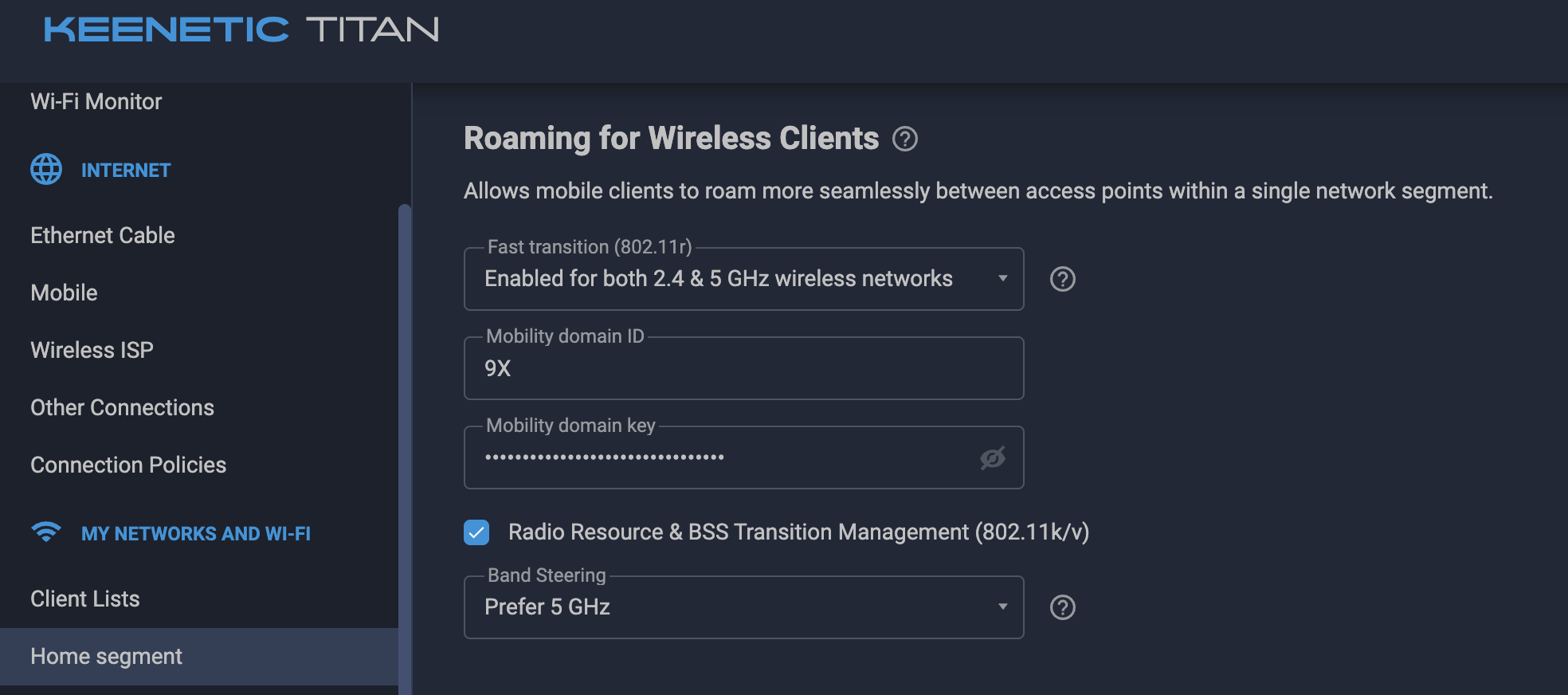
The roaming page after the fix: 802.11r/k/v left on, with band steering switched to Prefer 5 GHz.
Result: Instagram returned to normal.
Takeaways
- Diagnose with data, not vibes. The IPv6/NextDNS theory was plausible
and ultimately wrong. Twenty seconds of
nextdns/diagsaved hours of disabling IPv6 across the LAN and chasing nothing. - DNS healthy ≠ network healthy. A clean DNS path tells you nothing about the Wi-Fi link, the MTU on the WAN, or the CDN routing from ISP to destination.
- “Same SSID + band steering: By default” is not a guarantee that dual-band clients land on 5 GHz. Verify in the client list which radio each device is on. Don’t assume the router is making the right choice.
- 40 MHz on 2.4 GHz is almost always wrong in a multi-tenant environment. The default in some router UIs; an antipattern in practice.
The IPv6 angle wasn’t crazy — it just wasn’t this story.